


How to Get Rid of a Reference Image in Krita (Delete or Hide It)

To get rid of a reference image in Krita, select the Reference Images tool (the pushpin icon), click the image on your canvas, and press the Delete key. To remove every reference image at once, click “Delete all reference images” in the tool options. If you only want them out of the way, go to View > Show Reference Images and untick it.
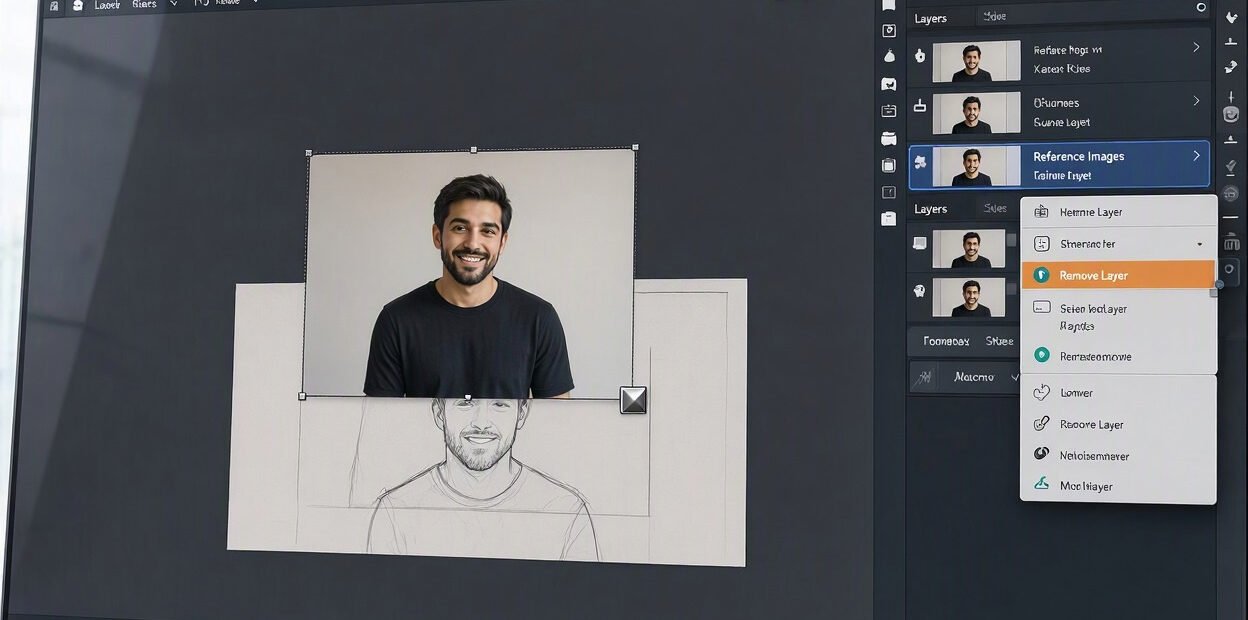
If you have been hunting through the Layers panel without luck, that is the reason: reference images are not layers, so they never appear there.
The Quick Answer
| What you want | What to do |
|---|---|
| Delete one reference image | Reference Images tool > click the image > press Del |
| Delete several | Hold Shift, click each image, press Del |
| Delete all | Reference Images tool > Delete all reference images |
| Hide them temporarily | View > Show Reference Images (untick) |
| Delete on Krita Android | Use “Delete all”, or finish the job on desktop |
| Stop it coming back | Delete it, then save your .kra file |
Why You Can’t Find the Reference Image in Your Layers
This is the number one point of confusion. Krita keeps reference images separate from your artwork:
- They do not appear in the Layers docker.
- They are not part of your canvas or export. They sit on top for you to look at.
- You can only move, resize or delete them with the Reference Images tool.
So if you try to remove one by selecting a layer and pressing Delete, nothing will happen to it. You need the pushpin tool.
How to Delete a Single Reference Image in Krita
- Select the Reference Images tool. It looks like a pushpin in the toolbox. If you cannot see the toolbox, open it from the Settings menu under Dockers.
- Click the reference image you want to remove. Small handles appear around it, which means it is selected.
- Press the Delete key on your keyboard.
The image disappears from the canvas. Nothing else in your painting is touched.
How to Delete Several Reference Images at Once
- Choose the Reference Images tool.
- Click the first image.
- Hold Shift and click each additional image you want to remove.
- Press Delete.
This is handy when you have pinned a whole board of references and only want to keep one or two.
How to Delete All Reference Images in Krita
- Select the Reference Images tool.
- Open the Tool Options panel (it shows when the tool is active).
- Click Delete all reference images.
Every reference image is removed in one go. There is no confirmation step, so save a copy first if you are unsure. You can also use Edit > Undo straight after if you clicked by mistake.
How to Hide Reference Images Without Deleting Them
If you just want a clear view of your canvas, hide them instead:
- Go to the View menu.
- Untick Show Reference Images.
Tick it again to bring them back. This is the quickest fix when a reference image is blocking your drawing, or when you want to check your work without it.
Reference Image or Layer? How to Tell
| It is a reference image if… | It is a layer if… |
|---|---|
| It is not listed in the Layers docker | It is listed in the Layers docker |
| You can only select it with the pushpin tool | You can select it by clicking its layer |
| It does not appear when you export | It appears in your exported image |
| Toggled by View > Show Reference Images | Toggled by its eye icon |
If you imported the image as a layer (File > Import, or opening it as a new layer), delete it like any layer: select it in the Layers docker and click the trash can icon, or press Shift + Delete.
Reference Image Won’t Delete? Try These Fixes
The Delete key does nothing.
- Make sure the Reference Images tool is active, and that the image is actually selected (you should see handles around it).
- Click the image once on the canvas, then press Delete again.
- Some keyboards label the key differently. Users on Spanish keyboards have reported problems with “Supr”. If the key is not working, use Delete all reference images from the tool options instead.
- On a Mac, the key labelled “delete” is often backspace. Try Fn + Delete, or use “Delete all reference images”.
You can’t click the image at all.
Another tool is probably active. Switch to the pushpin tool first. Also check that View > Show Reference Images is ticked, because hidden images cannot be selected.
The image is off-screen.
Zoom out or pan around the canvas. A reference image may have been dragged beyond the visible area. Then select it with the pushpin tool. If you cannot find it, use Delete all reference images.
It says “Vector” or behaves like a shape.
Reference images are handled with the same selection style as vector objects, which is why some people see odd messages. The fix is still to use the Reference Images tool, select it and press Delete.
The reference image keeps coming back after you reopen the file.
Krita saves reference images with your document. Delete the image, then save the file (Ctrl + S). If you were using the “Link to external file” option, the image loads from its original location every time you open the file, so deleting it and saving removes that link too.
You’re on Krita Android and can’t press Delete.
The Android version may not bring up a keyboard for the Delete shortcut. Options:
- Use Delete all reference images in the tool options.
- Connect a physical keyboard and press Delete.
- Transfer the .kra file to a computer, delete the image there, then copy it back.
Embed vs Link: What Happens to Your Reference Images
When you add a reference image, Krita asks how to store it:
- Embed to .kra: the image is saved inside your Krita file. The file gets larger, but the reference is always with it.
- Link to external file: Krita only remembers where the image is on your disk and opens it from there each time. If you move or delete the original file, the reference may go missing.
If your .kra file is very large, removing unneeded embedded reference images and saving again can reduce its size.
Useful Things to Know About Krita Reference Images
- Move them by dragging with the Reference Images tool.
- Resize by dragging the handles at the corners and edges.
- Colour pick from a reference image while painting, without adding it to your artwork.
- Adjust the image’s opacity and saturation in the tool options, so it is less distracting.
- Save and load sets with Save Set and Load Set, which is useful for reusing the same references in different projects.
- Paste from clipboard with Paste as Reference Image.
Common Mistakes to Avoid
- Searching the Layers docker. Reference images never appear there.
- Forgetting to select the image first. Pressing Delete with nothing selected does nothing.
- Using the wrong tool. Only the Reference Images tool can move or delete them.
- Hiding instead of deleting. View > Show Reference Images only hides them, and they are still saved in the file.
- Not saving after deleting. The image may reappear when you reopen the file.
- Clicking “Delete all” by accident. Use Undo straight away if this happens.
Conclusion
To get rid of a reference image in Krita, pick the Reference Images (pushpin) tool, click the image and press Delete. Use Shift to select several, “Delete all reference images” to clear the lot, and View > Show Reference Images to hide them temporarily. If the Delete key does not work, check that the pushpin tool is active, try the tool options button, and remember to save so the image does not come back next time you open the file.
FAQs
How do I delete a reference image in Krita?
Select the Reference Images tool (pushpin), click the image, then press Delete.
Why can’t I see my reference image in the layers panel?
Reference images are not layers. They are managed only with the Reference Images tool.
How do I delete all reference images in Krita?
With the Reference Images tool active, click “Delete all reference images” in the tool options.
How do I hide a reference image without deleting it?
Go to View and untick Show Reference Images.
How do I delete only one of several reference images?
Use the Reference Images tool, click that single image and press Delete. Hold Shift to pick more than one.
Why won’t my reference image delete?
The pushpin tool may not be active, the image may not be selected, or your Delete key may not be recognised. Try “Delete all reference images” as a workaround.
Why does my reference image come back when I reopen my file?
It was saved with the document. Delete it and save the file again.
Can I delete reference images in Krita on Android?
Yes, but the Delete shortcut can be awkward without a keyboard. Use the “Delete all” button, or edit the file on a computer.
Do reference images show up when I export my painting?
No. They are not part of your artwork and are not included in exports.
How do I delete an image I imported as a layer?
Select the layer in the Layers docker and click the trash can icon, or press Shift + Delete.
Does deleting a reference image delete the original file on my computer?
No. Krita only removes the reference from your project. The original image file on your disk is untouched.
How can I reduce my Krita file size after using reference images?
Delete the embedded reference images you no longer need, then save the file again.