Tethering — using your phone as a WiFi hotspot for your laptop — is one of those modern miracles that comes with a catch: it absolutely devours battery. An hour of hotspotting can eat 20–30% of your charge, which means the feature is most needed exactly when you can least afford it (train with no sockets, working from a café, hotel WiFi down). Learning how to use your phone as a hotspot without draining the battery fast is about understanding where the power goes and cutting the waste. Here’s how to roughly double your tethering time.
Phone hotspot without draining battery: where the power actually goes
Hotspotting is expensive because the phone does three power-hungry things simultaneously: maintains the mobile data connection (the cellular radio working hard, especially on weak signal), broadcasts a WiFi network (the WiFi radio transmitting constantly), and runs the CPU to route traffic between them — all while the screen, background apps, and everything else run as normal. The cellular radio is the biggest drain, and it works hardest when the signal is weakest — which is precisely when you’re most likely to be hotspotting (rural train, basement café).
The big win: USB tethering instead of WiFi
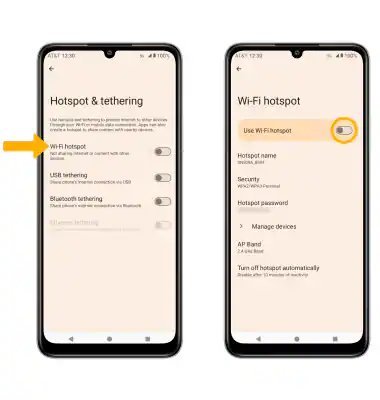
This is the single most effective change: connect the laptop to the phone with a USB cable instead of WiFi hotspot. USB tethering (Android: Settings > Network > Hotspot & tethering > USB tethering; iPhone: Personal Hotspot on, then plug in via cable and select the phone in network settings):
- Charges the phone while tethering — the laptop powers the phone, so battery drain effectively stops (or reverses slowly).
- Disables the WiFi broadcast — one entire radio switched off.
- Is faster and more stable than WiFi hotspot, with lower latency — better for video calls.
- Is more secure — no wireless network for anyone to snoop on.
Keep a short USB-C cable in your laptop bag permanently. It weighs nothing and transforms tethering from a battery emergency into a non-issue. This one tip is worth more than all the settings tweaks below combined.
If you must use wireless sharing: the settings that help
- Use the 2.4GHz band, not 5GHz. In hotspot settings, choose 2.4GHz — it uses less power and has better range. The speed difference is irrelevant for most tethering (your mobile data is the bottleneck, not the WiFi).
- Turn the screen off. The display is a huge drain running alongside the radios. Start the hotspot, lock the phone, put it face-down. Enable any “turn off hotspot automatically when no devices connected” option so it doesn’t broadcast to an empty room.
- Kill background apps on the phone. Every app syncing, backing up, or streaming in the background competes for the same battery. Before hotspotting: close unnecessary apps, pause cloud photo backup, and disable auto-updates.
- Reduce what the laptop does. The less data the laptop pulls, the less the phone’s radios work. Pause cloud syncs (OneDrive, Dropbox), disable auto-playing video, drop video-call quality to SD, and download rather than stream where possible. Your laptop’s behaviour directly drives the phone’s battery drain.
- Keep the phone cool. Hotspotting generates heat, and heat increases battery drain (and long-term degradation). Don’t hotspot with the phone in direct sun or under a laptop — airflow matters. If it’s getting hot, that’s your cue to switch to USB tethering.
- Lower screen brightness to minimum for the moments the screen is on, and enable battery saver mode — it throttles background activity without affecting the hotspot function.
The hardware that solves it properly
- A power bank (£20–£30 for 20,000mAh). The honest solution for all-day tethering: a decent power bank refills a phone 3–4 times. For regular train warriors, it’s as essential as the laptop itself. Keep it charged (ironic, but true).
- A plug-in charger at your destination. Obvious, but plan for it: know where the sockets are (aisle seats on trains, window tables in cafés), carry a compact GaN charger (£15) that fast-charges the phone while you work.
- A dedicated mobile hotspot device (£50–£100 plus a data SIM) — for the truly hardcore. Separate battery, better antennas than phones, doesn’t touch your phone’s charge at all. Overkill for occasional use; sensible for daily train commuters.
Watch the data, not just the battery
The battery isn’t the only thing hotspotting consumes — laptop data usage dwarfs phone usage (background updates, cloud syncs, HD video all assume unlimited broadband). Before a tethering session: check your allowance (our data usage guide helps you estimate), set the laptop’s connection as metered (Windows does this automatically for hotspots — it pauses updates and background downloads), and keep an eye on usage in the phone’s hotspot settings. Abroad, the stakes multiply — read our roaming data guide before tethering outside the UK, or one laptop backup could cost you £40.
If your phone’s battery is struggling generally — not just when hotspotting — our battery drain guide (the laptop principles transfer) and a battery health check are worth your time; a worn battery makes every tethering session shorter.
Google documents Android’s tethering options at Google Support — including the USB, Bluetooth, and WiFi methods with step-by-step setup for your Android version.
Bluetooth tethering: the forgotten middle option
Between WiFi hotspot (fast, power-hungry) and USB (best, needs a cable) sits Bluetooth tethering — and it’s genuinely useful in specific situations. Bluetooth uses far less power than WiFi, so it sips battery by comparison; the trade-off is speed (capped around 1–2Mbps real-world), which is fine for email, messaging, and light browsing but painful for anything heavier.
When to use it: when you’ve forgotten the USB cable, need to stretch battery to the absolute maximum, and only need basic connectivity — the classic “reply to urgent emails on the train with 8% battery” scenario. Pair once (phone’s Bluetooth tethering toggle, then join the PAN network from the laptop), and it reconnects easily thereafter. It’s not the daily driver — USB is — but as an emergency mode, it’s the difference between connected and dark. One more tool in the kit.
The practical takeaway
Use USB tethering whenever possible — it charges while sharing, kills the WiFi broadcast, and is faster. For WiFi hotspot: 2.4GHz band, screen off, background apps killed, laptop on metered connection, phone kept cool. Carry a £25 power bank for long sessions, and watch the data allowance as closely as the battery — the laptop will burn through gigabytes that your phone never would. Do all of this and hotspotting stops being a battery emergency and becomes just… internet, anywhere.