
New phone day is exciting right up until the moment you realise your old phone holds your entire life — photos, WhatsApp history, banking apps, two-factor codes, that note with the WiFi password — and the new one is a blank slate staring back at you. I’ve migrated phones more times than I can count, across every combination of iPhone and Android, and I can tell you the process is far less scary than it looks. Here’s how to transfer everything from an old phone to a new one without losing a single photo or spending your evening re-logging into forty apps.
The golden rule, whatever combination you’re dealing with: do the transfer before you wipe or sell the old phone, keep both phones charged and on WiFi, and don’t start until you have an uninterrupted hour. Rushing a migration is how things get lost.
Transfer everything old phone to new: iPhone to iPhone
Apple makes this almost embarrassingly easy. Quick Start is the method to use:
- Turn on the new iPhone and place it next to the old one. A prompt appears on the old phone — tap Continue.
- Scan the swirling blue animation with the old phone’s camera, then enter the old phone’s passcode on the new one.
- Choose “Transfer from iPhone” (direct device-to-device) rather than iCloud restore — it’s faster and doesn’t depend on your iCloud storage being big enough.
- Keep the phones next to each other, plugged in, for 30–60 minutes depending on how much stuff you have.
Everything comes across: apps, photos, messages, settings, even your home screen layout. What doesn’t transfer automatically: banking apps and some authenticator apps, which require re-verification for security — annoying but correct. Move your two-factor codes first (most authenticator apps have an export feature now), or you can lock yourself out of accounts. Trust me on this one.
Android to Android
Google’s transfer is nearly as smooth these days. During setup, connect the phones with a cable (USB-C to USB-C, often included) or use the wireless option when prompted:
- On the new phone, start setup and sign into the same Google account.
- When asked, choose to copy data from the old phone — cable is faster and more reliable than wireless.
- Select what to transfer: apps, photos, messages, call history, settings. Leave the old phone alone until it’s done.
Samsung-to-Samsung is even better: Smart Switch (built in, or free from the Play Store) moves essentially everything including home screen layout and Samsung-specific settings. For other brands, the Google flow covers the essentials. WhatsApp needs its own step — open WhatsApp on the old phone, go to Settings > Chats > Move chats to Android (or use the built-in transfer during setup), because chat history doesn’t ride along with the Google backup automatically.
Switching between iPhone and Android
This is where it gets slightly more involved, but it’s still very doable:
- Android to iPhone: Apple provides the free “Move to iOS” app on the Play Store. Install it on the old Android, start setup on the new iPhone, and choose “Move Data from Android”. It transfers contacts, messages, photos, videos, and even suggests iOS equivalents of your Android apps. WhatsApp chats can move too — initiate it from WhatsApp’s own settings.
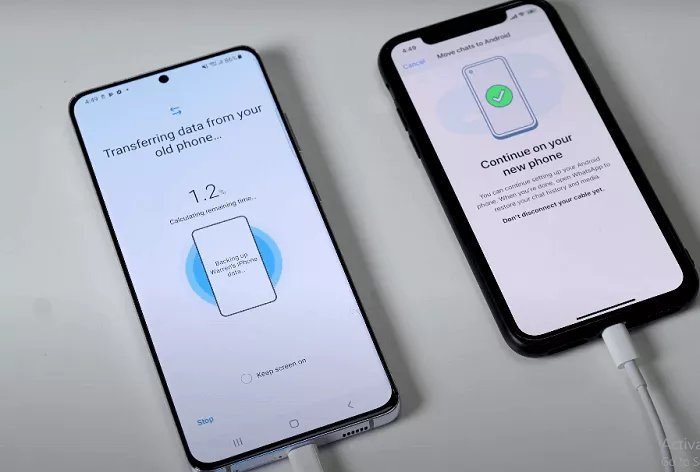
- iPhone to Android: during Android setup, connect the phones with a cable and follow the prompts — Google’s setup wizard pulls across contacts, photos, videos, and messages. On Samsung phones, Smart Switch handles iPhone transfers as well, including via iCloud.
Things to handle manually in either direction: WhatsApp (use its built-in move feature, not the generic backup), authenticator apps (export/import before wiping), downloaded music and podcasts (re-download on the new phone — faster than transferring), and health data (Apple Health doesn’t cross to Android, full stop).
The checklist before you wipe the old phone
Do not factory-reset the old phone until you’ve confirmed every one of these on the new one:
- Photos are all present (spot-check a few from different years — and make sure cloud backup is on going forward; see our Android photo backup guide)
- WhatsApp chats and media arrived intact
- You can log into banking apps (re-verify them now, while the old phone still works as backup)
- Two-factor/authenticator codes work
- Contacts, calendar, and messages look complete
- Bluetooth pairings you care about (car, headphones) are re-paired
Keep the old phone for a week as a safety net — you’ll inevitably discover one forgotten thing. Only then wipe it (factory reset, remove from iCloud/Google account) and, if you’re selling, get some cash for it via the best way to sell your old phone. If the old phone was an iPhone that’s now gasping for space, you might also want how to stop iPhone storage filling up — useful if you’re handing it down to a family member.
Both Apple (Apple Support UK) and Google (Google Support) maintain step-by-step transfer guides with screenshots, updated for the latest OS versions — worth bookmarking if anything here behaves differently on your specific models.
Don’t forget the eSIM
One thing that trips people up in 2026: if your old phone uses an eSIM rather than a physical SIM, it doesn’t move with the automatic transfer. On iPhone-to-iPhone, you’ll usually get a prompt during setup offering to transfer the eSIM — accept it, and it takes a few minutes. If the prompt doesn’t appear, you’ll need to contact your network for a new eSIM QR code or use their app to reissue it, which is free but can take a few hours.
For Android, eSIM transfer between phones is improving but still patchy depending on manufacturer — Samsung and Pixel handle it best. The safest approach: before wiping the old phone, confirm the new one can make calls and use mobile data. And if you’re also switching to a better deal while you’re at it, our guides to cheap SIM-only deals and how much data you need are worth a read — a new phone is the perfect moment to stop overpaying for your plan too.
The practical takeaway
Use the built-in tool for your combination — Quick Start for iPhone-to-iPhone, cable transfer or Smart Switch for Android, Move to iOS / Google’s wizard for switching sides — handle WhatsApp and authenticator apps as separate deliberate steps, and don’t wipe the old phone until you’ve verified photos, chats, banking, and 2FA on the new one. Give it an unhurried hour on good WiFi, and new-phone day stays exciting instead of becoming an evening of quiet panic.