
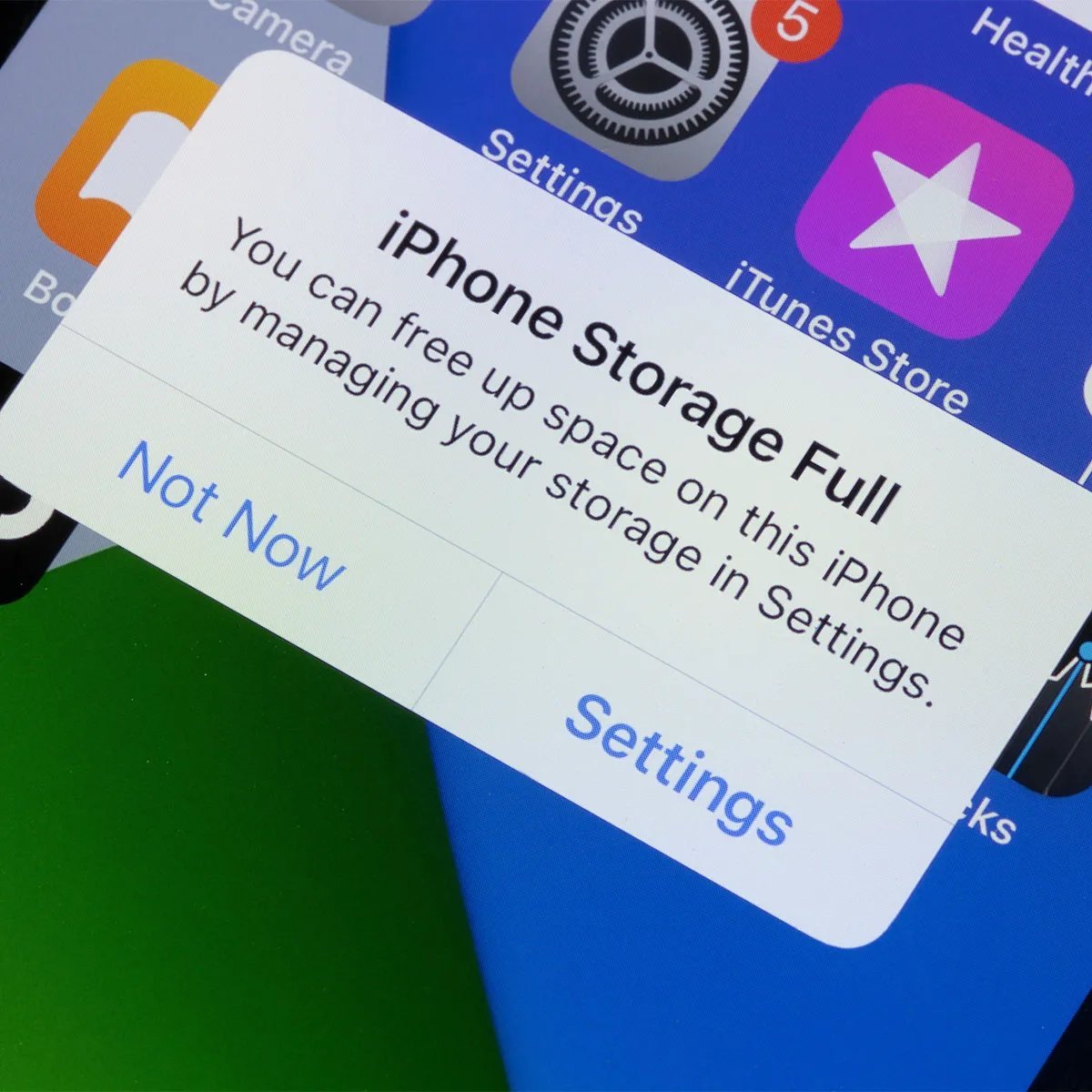
There’s a special kind of dread that comes with the “iPhone Storage Almost Full” warning popping up just as you’re trying to photograph something worth keeping. I’ve been there — deleting apps in a panic at a wedding, choosing which memories to sacrifice. The good news is that an iPhone storage full warning is almost always fixable in under half an hour, and you rarely need to delete anything you actually care about. Here’s the order I’d tackle it in, from biggest wins to smallest.
First, let’s see what’s actually eating your space. Go to Settings > General > iPhone Storage and wait for the coloured bar to load. For most people, the culprits are depressingly predictable: Photos, WhatsApp, and a handful of apps hoarding gigabytes of cached data. Once you can see the breakdown, you can be surgical instead of randomly deleting things and hoping.
iPhone storage full? Start with these big wins
1. Offload unused apps (the painless one)
Your iPhone can automatically remove apps you haven’t opened in ages while keeping all their data. Turn on Settings > App Store > Offload Unused Apps and the phone handles it silently in future. The app icon stays on your home screen with a little cloud symbol, and one tap re-downloads it with everything intact. I’ve reclaimed 8GB this way without losing a single thing that mattered.
2. Tame your photos properly
Photos is usually the biggest hog. Two moves fix most of it:
- Turn on iCloud Photos with “Optimise iPhone Storage” (Settings > [your name] > iCloud > Photos). Full-resolution originals live in iCloud; your phone keeps lightweight versions. This alone can free tens of gigabytes.
- Delete the duds: screenshots of train times from 2022, fifteen near-identical shots of the same sunset, blurry accident-photos. Do a five-minute cull while the kettle boils — it’s weirdly satisfying.
If you’d rather not pay Apple for iCloud, our guide to free cloud storage with the most space compares the genuinely free alternatives, and there’s a dedicated walkthrough for backing up photos if anyone in the house is on Android.
3. Attack WhatsApp’s hidden hoard
WhatsApp quietly downloads every photo, video, and voice note from every group chat you’re in — including groups you muted in 2021 and forgot existed. In WhatsApp, go to Settings > Storage and Data > Manage Storage and you’ll see exactly which chats are the worst offenders. Delete the “larger than 5MB” files from dead group chats and watch gigabytes evaporate. Then, in the same menu, set media auto-download to Wi-Fi only (or off entirely) so it stops refilling.
4. Clear the app caches you can’t see
iPhones don’t have a single “clear cache” button, which is annoying, but individual apps do. The worst offenders:
- Safari: Settings > Apps > Safari > Clear History and Website Data. This can free a surprising amount.
- Streaming apps (Netflix, Disney+, Spotify, BBC iPlayer): downloaded shows and offline playlists pile up. Open each app’s settings and delete downloads you’ve already watched.
- Social apps (TikTok, Instagram, Facebook): these cache enormous amounts of data. Deleting and reinstalling the app is the nuclear option that works — your account and posts are unaffected.
5. Check Messages and voicemail
Under Settings > General > iPhone Storage, tap Messages to see how much space attachments are using. Years of shared photos and videos in iMessage threads add up. Set Messages to auto-delete after 30 days or a year (Settings > Apps > Messages > Keep Messages) — anything important is probably saved in Photos anyway. And clear out old voicemails in the Phone app; people forget these exist.
Stop it filling up again
Clearing space is only half the battle. A few habits keep the warning away for good:
- Shoot video at 1080p, not 4K, unless you’re editing professionally. A minute of 4K uses roughly 400MB; 1080p uses a fraction of that. Change it in Settings > Camera > Record Video.
- Turn off “Keep Normal Photo” if you shoot in HDR or Portrait — it saves two copies of every shot.
- Review downloads monthly. Podcasts, Netflix downloads, and Spotify offline playlists are the silent refillers. A two-minute check once a month prevents the problem recurring.
- Use cloud storage for documents. Files you’ve downloaded “just in case” and never opened can go. If you need the file, re-download it.
Apple’s own support pages have step-by-step instructions for managing storage if you want the official walkthrough with screenshots, and they’re kept current with each iOS release.
The nuclear option: a clean start
If you’ve done all of this and you’re still scraping the barrel, the phone itself may just be too small for modern life — 64GB iPhones are increasingly unliveable in 2026. Before buying new, though, do a proper audit: back everything up (iCloud or a computer), and consider whether a factory reset and selective restore would help. When you set the phone up again, only reinstall the apps you genuinely missed during the reset process. Most people discover they used about a third of what was installed.
And if you do decide it’s time for a new handset, moving everything across is far less painful than it used to be — see how to transfer everything from an old phone to a new one for the full walkthrough.
What about “System Data” eating gigabytes?
Scroll to the bottom of the iPhone Storage screen and you’ll often find a mysterious grey chunk labelled System Data — sometimes 10GB, occasionally 20GB or more — with no delete button in sight. This is caches, logs, and temporary files iOS manages itself, and you can’t clear it directly. Frustrating, but there are two things that genuinely shrink it.
First, update iOS if you’re behind: Apple periodically fixes bugs where System Data grows unboundedly, and I’ve seen a single update reclaim 8GB. Second, the old faithful — back up the phone to a computer, then restore it. A restore rebuilds the filesystem and dumps accumulated cruft that no settings toggle can reach. It’s a faff, taking the better part of an evening, but for a phone showing 25GB of System Data it’s the only real fix. After the restore, resist reinstalling everything at once; add apps back as you need them and you’ll likely end up with a leaner, faster phone.
The practical takeaway
Work through it in this order: check the storage breakdown, offload unused apps, optimise photos with iCloud, purge WhatsApp’s media hoard, clear Safari and streaming downloads, then fix Messages retention. That sequence alone typically frees 10–30GB — enough to silence the warning for months. The longer-term fix is boring but effective: optimised photo storage, Wi-Fi-only auto-downloads, and 1080p video. Do those three things and you’ll likely never see the “Storage Almost Full” banner again.