
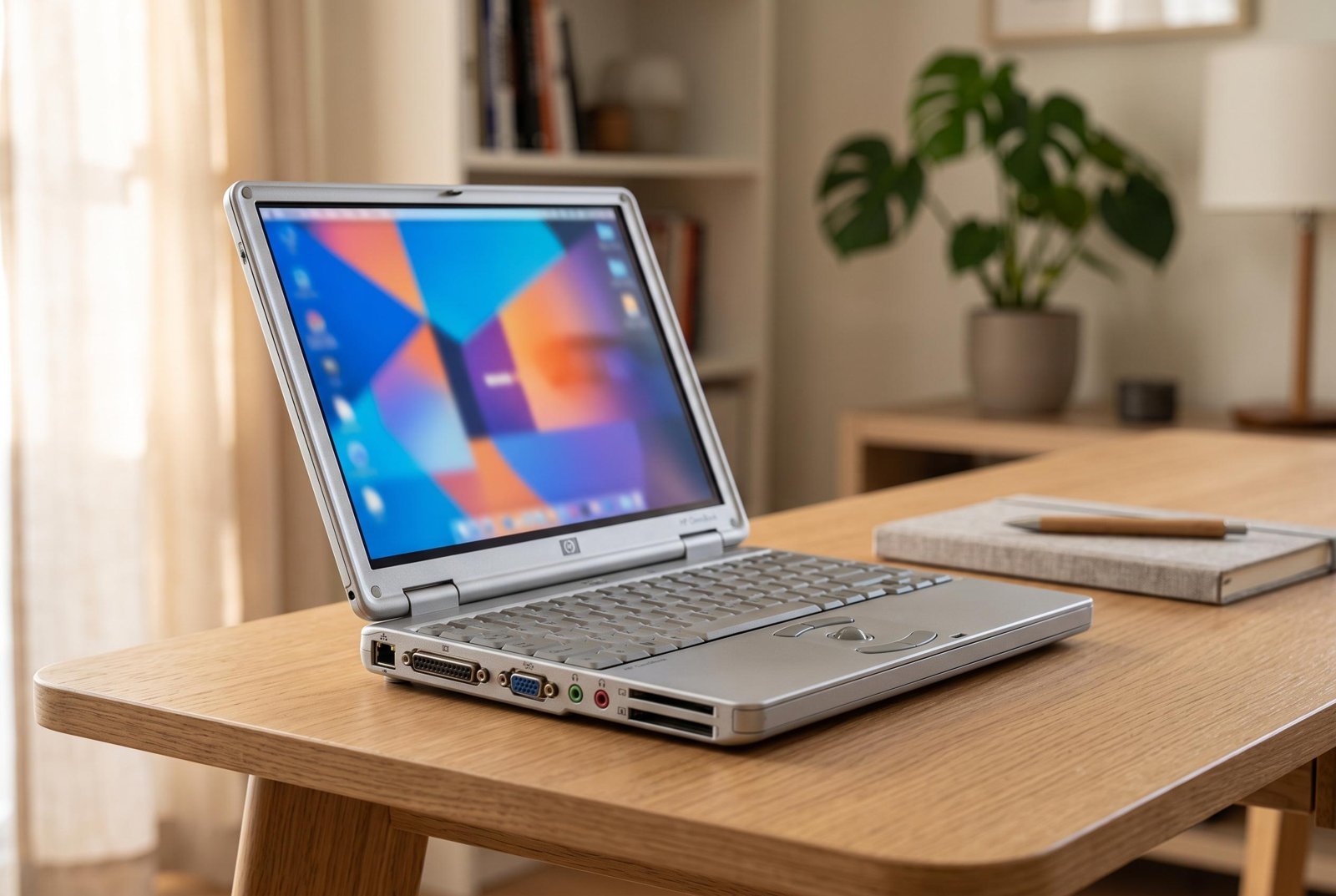
I’m typing this on a laptop I bought in 2020, and it still handles everything I throw at it — writing, video calls, thirty browser tabs I’m definitely going to read later. Meanwhile, a friend replaced hers after just three years because it had become “unusable”. Same era, wildly different outcomes. So how long should a laptop last before it needs replacing? The honest answer is: longer than most of us keep them — typically four to six years for a decent machine, and sometimes far more if you look after it.
Manufacturers would love you to upgrade every two to three years, and the marketing is relentless. But the reality of modern hardware is that performance gains have slowed dramatically. A mid-range laptop from 2021 is still perfectly capable in 2026 for everyday tasks. The machines that die young usually do so from neglect, not old age — clogged fans, swollen batteries, and hard drives (if it still has a spinning one) giving up, all of which are preventable or fixable.
How long should a laptop last? Realistic lifespans by type
Not all laptops are built equal, and expectations should match what you paid:
- Premium ultrabooks (£900+, e.g. MacBook Air, Dell XPS, ThinkPad X1): 6–8 years is realistic. The build quality is better, the components are better binned, and manufacturers support them longer. My 2020 machine falls in this camp.
- Mid-range (£400–£800): 4–6 years. This is the sweet spot for most people — the best balance of lifespan per pound.
- Budget (£250–£400): 3–4 years. Cheaper hinges, cheaper batteries, less RAM to grow into. They can still serve well, but expect the battery to fade first.
- Gaming laptops: 3–5 years for gaming at good settings, though they remain fine general-purpose machines long after. The fans work hard and the heat takes a toll.
- Chromebooks: tied to Google’s update expiry date — check the Auto Update Expiration before buying. Usually 6–8 years from release, after which they become a security risk.
The single biggest determinant isn’t the brand or the price, though — it’s RAM and storage. A laptop with 16GB of RAM and an SSD will age gracefully; one with 4GB of RAM and a spinning hard drive was obsolete the day it left the factory. If your current machine is slow, read how to speed up a slow Windows 11 laptop before assuming it needs replacing — most “dying” laptops are just clogged up.
The signs yours is genuinely done
There’s a difference between a laptop that needs maintenance and one that’s reached the end. Replace when you see these:
- It can’t run supported software. If your OS no longer gets security updates (Windows 10’s end of life has caught many people out) and the hardware can’t run the replacement, that’s a hard stop — an unpatched machine on the internet is a liability.
- Hardware failures are stacking up. One dead key is an annoyance; a failing screen, dying battery, and broken hinge together mean the machine is telling you something.
- Repairs cost more than it’s worth. A £60 battery or £40 RAM upgrade is sensible. A £250 motherboard repair on a five-year-old £400 laptop is not.
- It’s holding back your work. If you’re losing real time every day to slowness — renders crawling, video calls stuttering, apps crashing — the productivity cost dwarfs the price of a replacement.
Conversely, don’t replace for these alone: a slow boot (fixable), a tired battery (replaceable on many models — see what to do if your laptop battery drains too fast), or simply fancying something shinier. That last one is fine if you can afford it, but let’s call it what it is.
How to add years to any laptop
This is the bit most people skip, and it’s worth more than any buying advice:
- Keep it cool. Heat is the great killer. Use it on hard surfaces, blow the dust out of the vents yearly with compressed air, and don’t use it on a duvet — I know, we all do it, but the fans can’t breathe.
- Don’t baby the battery — but don’t abuse it. Modern batteries prefer partial charges to full 0–100% cycles. If yours has a battery charge limiter (many do now), set it to 80% for desk use.
- Upgrade the cheap bits. Adding RAM or swapping a hard drive for an SSD can make a five-year-old laptop feel new for under £80. Check if your model allows it before assuming it doesn’t.
- Reinstall the OS every couple of years. Windows accumulates cruft like a attic. A fresh install is the closest thing to a time machine that exists.
- Update everything. Security updates aren’t optional. An unpatched laptop is how identities get stolen.
If the worst happens and it won’t power on at all, don’t write it off immediately — our guide to fixing a laptop that will not turn on walks through the checks that revive a surprising number of “dead” machines.
For independent reliability data — which brands actually last, according to thousands of owners — Which?’s laptop reviews include reliability ratings that are far more useful than any spec sheet.
Should you pay for an extended warranty?
Retailers will offer you extended warranties at checkout with the enthusiasm of someone on commission — because they are. Here’s my honest take: for a premium laptop (£900+) that you depend on for work, AppleCare+ or the manufacturer’s extended cover is often worth it. One out-of-warranty screen or motherboard repair can cost £300–£500, so £200–£250 for three years of cover is reasonable insurance, especially since it usually includes accidental damage.
For mid-range and budget laptops, the maths rarely works. A £150 two-year warranty on a £450 laptop is a third of the machine’s value, and most failures happen either in year one (covered by the standard warranty and your Consumer Rights Act protections) or after year three (outside the extended cover anyway). Remember: under the Consumer Rights Act 2015, goods must last a reasonable time — for a laptop, that’s generally considered up to six years — so you have legal recourse against the retailer for premature failures even without an extended warranty. Save the money; put it toward your next machine instead.
The practical takeaway
Plan on 4–6 years from a decent mid-range laptop, longer for premium machines, and judge replacement on security support and real productivity loss rather than age alone. Before you spend a penny on a new machine, try the maintenance route: clean the vents, check the battery health, consider a RAM or SSD upgrade, and do a fresh OS install. You might just discover, as I did, that the laptop you were about to replace has years left in it — and there’s something deeply satisfying about that.