
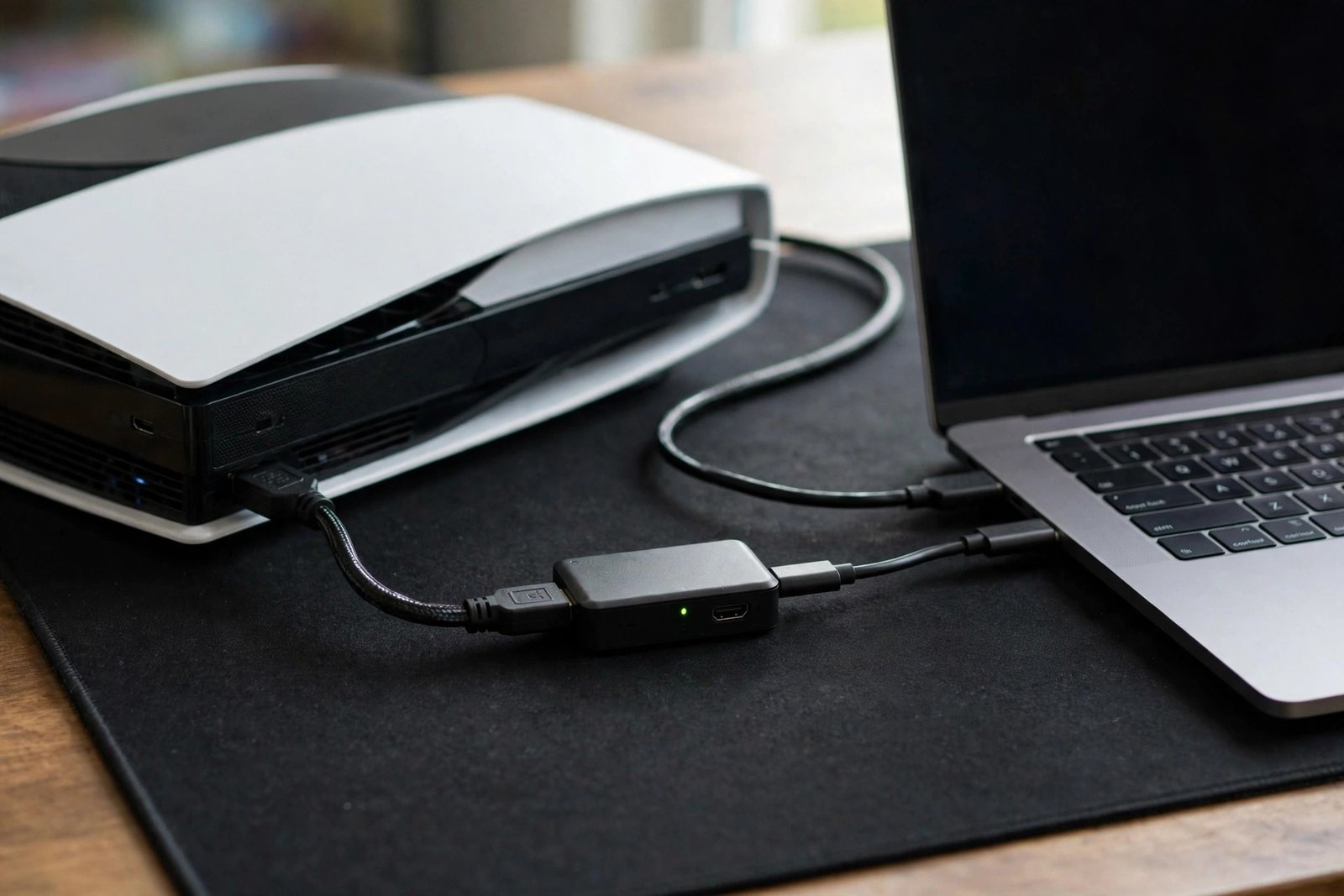
You want to stream console gameplay, record videos in high quality, or capture footage from a camera — and everyone says you need a capture card. Then you look at the options: £60 to £300, internal versus external, 1080p versus 4K, passthrough, latency, OBS compatibility. Choosing feels like a research project. How long does it actually take to choose well — and when do you see real results from the decision?
The choosing itself takes most beginners one focused evening (2–3 hours). The “real results” — noticeably better stream or recording quality — arrive the same week you install it. But only if you buy the right card for your actual use case, which is where beginners go wrong. Here is the complete decision path.
Do You Actually Need One? (Half of Beginners Do Not)
Before comparing models, answer the threshold question. You need a capture card if: you stream or record console gameplay (PS5, Xbox, Switch) to a PC — consoles cannot send video to a PC without one; you want to use a DSLR or camcorder as a high-quality webcam; or you run a two-PC streaming setup. You do not need one if: you only stream PC games (software capture via OBS is free and excellent); you only stream directly from console to Twitch/YouTube (built-in broadcasting handles it); or you just want to record PC gameplay (GPU software like ShadowPlay/Relive is free).
This single filter eliminates half of prospective buyers. Capture cards solve a specific problem — getting external video into a PC. If your video originates on the PC already, software does it free. Beginners who skip this question buy £150 of hardware to solve a problem they never had.
The Three Decisions (In Order)
Decision 1: External vs internal. External cards (USB) work with any PC or laptop, install in seconds, and move between machines — the beginner default. Internal cards (PCIe) slot into desktop motherboards, offer slightly lower latency and higher bandwidth, and cost similar money. Rule: laptop or flexibility → external; dedicated desktop streaming rig → internal. Most beginners should buy external.
Decision 2: Resolution and frame rate. Match the card to your output, not your dreams. Streaming to Twitch at 1080p60? A 1080p60 capture card (£60–£120) is perfect — paying for 4K capture you will downscale anyway is wasted money. Recording 4K for YouTube? Then 4K60 capture (£180–£300) is justified. The marketing pushes 4K on everyone; the reality is that most streams are 1080p and most viewers watch on phones. Buy for the audience you have, not the one you imagine.
Decision 3: Passthrough. This is the feature beginners overlook and then regret. Passthrough means the card sends the console’s signal to your TV/monitor unmodified while simultaneously sending a copy to the PC — so you play with zero added delay while the stream gets its feed. Without passthrough (or with limited passthrough), you play from the delayed preview window, which is miserable for anything timing-sensitive. Check passthrough specs explicitly: you want 4K60 or 1080p120+ passthrough matching your display.
The Shortlist (What the Money Buys)
Budget (£60–£120): reliable 1080p60 external cards from established brands. Perfect for console streaming to Twitch/YouTube, Switch capture, and starter setups. This tier serves most beginners completely — the quality difference versus pricier cards is invisible at streaming bitrates.
Mid-range (£130–£200): 4K30 or 1440p60 capture with full 4K60 passthrough. For creators recording 4K YouTube content or playing at high refresh rates while streaming. The sweet spot for serious hobbyists.
Premium (£200–£300+): 4K60 capture, 4K120/1440p240 passthrough, HDR support. For established creators and high-refresh competitive players. Beginners should not start here — the gains are real but irrelevant until your audience and content demand them.
Brand-wise, the market is concentrated: Elgato and AverMedia dominate with the best software ecosystems and OBS integration. Cheaper no-name cards exist and sometimes work fine — but driver support and longevity favour the established names, and a capture card that stops working after a Windows update is no bargain. The Twitch Creator Camp’s setup guides and YouTube’s creator resources both cover capture workflows with current recommendations.
Setup: When Results Actually Arrive
Installation takes under an hour: console → capture card → PC via USB, plus HDMI from card to TV for passthrough. Then OBS: add the card as a video capture source, set resolution and frame rate, sync audio (the usual fiddliness — expect 30 minutes of audio-delay tuning), and test-record. Real results arrive the same evening: dramatically better quality than console built-in streaming, full overlay and scene control, and local recordings suitable for editing.
The week-one refinements that separate good from great: proper audio routing (game audio, mic, and alerts on separate tracks), colour adjustment (capture cards often need slight saturation/contrast tweaks), and a test stream watched back on a phone — because that is how most viewers see it. If your display chain needs attention too, a good budget 4K TV ensures what you see while playing matches what the card captures. And the general streaming principles — stable bandwidth, sensible settings — mirror reliable home streaming setups.
Mistakes That Waste Weeks
Buying 4K capture for 1080p streaming — the classic overspend, adding £100+ for invisible gains. Ignoring passthrough — discovering the hard way that playing from a delayed preview is unbearable. HDCP headaches — some consoles and apps use copy protection that capture cards cannot record; research your specific sources. USB port roulette — external cards need USB 3.0+ ports with adequate bandwidth; a hub-shared port causes dropped frames blamed on the card. Skipping the audio setup — perfect video with echoing or desynced audio is unwatchable; budget the tuning time.
Future-Proofing: What to Consider
Capture cards age better than most tech — a good 1080p60 card bought today will still be perfectly useful in five years, because streaming bitrates and platform standards evolve slowly. The one future-proofing consideration worth paying for is passthrough headroom: buying a card whose passthrough exceeds your current display (4K60 passthrough while you stream 1080p) means a future monitor upgrade does not obsolete the card. Beyond that, do not overthink longevity — the £60–£120 tier is cheap enough that replacing it in four years, if ever needed, is painless. The expensive mistake is not buying too cheap; it is buying 4K capture “for the future” and never using it.
The Bottom Line
Choosing a capture card takes one focused evening: confirm you actually need one, pick external vs internal, match resolution to your real output, and verify passthrough. Real results — professional-quality console streams and recordings — arrive the same week. Most beginners are fully served by the £60–£120 tier; spend more only when your content outgrows it. It is one of the rare tech purchases where the decision is quick, the setup is quick, and the payoff is immediate.
Frequently Asked Questions
Do I need a capture card to stream PC games?
No. Software capture (OBS Studio, free) handles PC games excellently. Capture cards are for getting external video — consoles, cameras — into your PC.
What is the cheapest good capture card for console streaming?
Reliable 1080p60 external cards from Elgato or AverMedia run £60–£120 and are all most beginners need for Twitch or YouTube streaming.
What is passthrough and why does it matter?
Passthrough sends the console signal to your TV unmodified while copying it to the PC — so you play with zero delay. Without it, you play from a laggy preview window. Always check passthrough specs before buying.
Can I use a capture card with a laptop?
Yes — external USB capture cards work with any laptop meeting the USB 3.0 and CPU requirements. This flexibility is exactly why beginners should default to external cards.